January 12, 2018

Build A Web Application With Flask In Python Part I

Flask is a popular micro web application framework for Python using which you can create web apps. Unlike another popular framework like Django, Flask keeps its foot print to a minimum providing only the basic functionality required instead of picking out the entire stack for you the way Django does. And we call it a micro framework for this very reason. Using flask's extensibility at the core, you can build any type of applications by picking the components you want to use. Several big name companies like LinkedIn, Pinterest use Flask for their products.

Flask Logo

In this tutorial we will get started with using Flask and create a simple web application with it.

Prerequisites

To follow along with this series you should have some knowledge of Python language. I'm using 3.6 for these tutorials and if you would like to follow along without any issues, I would suggest you to use the same version. For any of the previous versions, there might be a couple of changes in the syntax but the ideas and concepts will remain same.

You will also need to install Flask. You can do that with pip.

pip install -U flask

This will install flask if you don't already have it and update the version to latest if you have a previous version installed.

With those two things, you are good to go.

Getting Started

Just like with anything else you start by importing the stuff you want.

from flask import Flask

And this will make Flask ready for you to use. After this you have to create an app object by calling the Flask constructor like this:

app = Flask("hello")

This will create our app object. The name hello I've specified in the constructor can be anything. But the usual convention is to keep it __main__. Also, the app is just a variable. So, you can name it anything you want.

Next you have to define the routes. Using routes you configure your server to do different actions. Let's say when you type in some website URL in to your browser, you will be taken to its home page. Now if you do a <website>/info it will take you to the info page. So, this mapping of the call to /info URL to the info page is what we call as a route. For the home page the route is simply /.

Let's say we want our server's homepage to display Hello World. You can configure that with a method like this:

@app.route('/')
def index():
    return "Hello World"

With the @app.route('/'), we are defining a route on our server. So, when ever somebody opens that route, which for us i the homepage, the index() method associated with that route annotation will be called. And when the index() method is called it will return Hello World just as we expect it to.

And there is one final command to start and run our server which is:

app.run(debug=True)

And that's it. This will run the app that we have created when you run the python file. The debug=True option is useful while developing and testing applications. So, we'll keep that for now.

Just run your python script and you should output like this on the console:

* Debugger is active!
* Debugger PIN: 127-398-124
* Running on http://127.0.0.1:5000/ (Press CTRL+C to quit)

Now If you go to http://localhost:5000, you can see Hello World displayed.

That's it. You have successfully created your first web application with flask in just 3 lines of code. Now, that is awesome. Stay tuned for the next part.

That is all for this article.


For more programming articles, checkout Freblogg Freblogg/Python

Some articles on automation:

Web Scraping For Beginners with Python

My semi automated workflow for blogging

Publish articles to Blogger automatically

Publish articles to Medium automatically


This is the 21st article as part of my twitter challenge #30DaysOfBlogging. Nine more articles on various topics, including but not limited to, Java, Git, Vim, Software Development, Python, to come.

If you are interested in this, make sure to follow me on Twitter @durgaswaroop. While you're at it, Go ahead and subscribe here on medium and my other blog as well.


If you are interested in contributing to any open source projects and haven't found the right project or if you were unsure on how to begin, I would like to suggest my own project, Delorean which is a Distributed Version control system, built from scratch in scala. You can contribute not only in the form of code, but also with usage documentation and also by identifying any bugs in its functionality.


Thanks for reading. See you again in the next article.

January 10, 2018

Json Parsing With Python

18:26 Posted by Freblogg , , , , , No comments

JSON has become an ubiquitous data exchange format everywhere. Pretty much every service has a JSON API. And since it is so popular, most of the programming languages have built-in JSON parsers. And Of course, Python is no exception. In this article, I'll show you how you can parse JSON with Python's json library.

Python Logo

JSON parsing in Python is quite straight forward and easy unlike in some languages, where it is unnecessarily cumbersome. Like everything else in Python, You start by importing the library you want.

import json

In this article, I am going to use the following JSON I got from json.org

{
  "menu": {
    "id": "file",
    "value": "File",
    "popup": {
      "menuitem": [
        {"value": "New", "onclick": "CreateNewDoc()"},
        {"value": "Open", "onclick": "OpenDoc()"},
        {"value": "Close", "onclick": "CloseDoc()"}
      ]
    }
  }
}

We have got a good set of dictionaries and arrays to work with in this data. If you want to follow along, you can use the same JSON or you can use anything else as well.

The first thing to do is to get this json string into a variable.

json_string = """{"menu": {
  "id": "file",
  "value": "File",
  "popup": {
    "menuitem": [
      {"value": "New", "onclick": "CreateNewDoc()"},
      {"value": "Open", "onclick": "OpenDoc()"},
      {"value": "Close", "onclick": "CloseDoc()"}
    ]
  }
}}"""

And now we parse this string into a dictionary object with the help of the json library's loads() method.

json_dict = json.loads(json_string)

And you're done. The JSON is parsed and is stored in the json_dict object. The json_dict here is a python dictionary object. If you want to verify, you can do that by calling the type() on it with

print(type(json_dict))

And it will show that it is <class 'dict'>.

Getting back, We have the entire json object as a dictionary in json_dict object and you can just drill down into the dictionary with the keys. On the top level, We just have one key in the dictionary which is menu. We get can get that by indexing the dictionary with that key.

menu = json_dict['menu']

And of course menu is a dictionary too with the keys id, value, and popup. We can access them and print them as well.

print(menu['id'])            ## => 'file'
print(menu['value'])         ## => 'File'

And then finally we've got popup which is another dictionary as well with the key menuitem which is a list. We can verify this by checking the types of these objects.

popup = menu['popup']
print(type(popup))           ## => <class 'dict'>

menuitem = popup['menuitem']
print(type(menuitem))        ## => <class 'list'>

And Since menuitem is a list, we can iterate on it and print the values.

for item in menuitem:
    print(item)

And the output is

{'value': 'New', 'onclick': 'CreateNewDoc()'}
{'value': 'Open', 'onclick': 'OpenDoc()'}
{'value': 'Close', 'onclick': 'CloseDoc()'}

And of course each of these elements are dictionaries and so you can go further inside and access those keys and values.

For example, If you want to access New from the above output, you can do this:

print(menuitem[0]['value'])  ## => New

And so on and so forth to get any value in the JSON.

And not only that, json library can also accept JSON responses from web services. One cool thing here is that, web server responses are byte strings which means that if you want to use them in your program you'd have convert them to regular strings by using the decode() method. But for json you don't have to do that. You can directly feed in the byte string and it will give you a parsed object. That's pretty cool!

That is all for this article.


For more programming articles, checkout Freblogg Freblogg/Python

Some articles on automation:

Web Scraping For Beginners with Python

My semi automated workflow for blogging

Publish articles to Blogger automatically

Publish articles to Medium automatically


This is the 19th article as part of my twitter challenge #30DaysOfBlogging. Eleven more articles on various topics, including but not limited to, Java, Git, Vim, Software Development, Python, to come.

If you are interested in this, make sure to follow me on Twitter @durgaswaroop. While you're at it, Go ahead and subscribe on medium and my blog as well.


If you are interested in contributing to any open source projects and haven't found the right project or if you were unsure on how to begin, I would like to suggest my own project, Delorean which is a Distributed Version control system, built from scratch in scala. You can contribute not only in the form of code, but also with usage documentation and also by identifying any bugs in its functionality.


Thanks for reading. See you again in the next article.

January 08, 2018

Datasets In Apache Spark - Part 3 | Writing Datasets to Disk

In the last tutorial we've seen how to create parametrized datasets. Once you create datasets and perform some operations on them, you would like to save those results back into storage. This is what we'll try to do in this article - Saving Datasets to storage.

Spark Logo

The first thing we'll do as always is to create the spark-session variable.

// Initialize Sparksession
SparkSession spark = SparkSession.builder().appName("Freblogg-Spark").master("local").getOrCreate();

Using that session variable, we read the fake-people.csv file which has data like this:

id,first_name,last_name,email,gender,ip_address
1,Netti,McKirdy,nmckirdy0@slideshare.net,Female,148.3.248.193
2,Nickey,Curreen,ncurreen1@tripadvisor.com,Male,206.9.48.216
3,Allayne,Chatainier,achatainier2@trellian.com,Male,191.118.4.217
...

We read this file into a dataset as following:

// Read csv file
Dataset<Row> peopleDs = spark.read().option("header", "true").csv("fake-people.csv");

After we have the dataset, Let's assume you've performed some operations on it. Some column selections, some filtering, some sorting etc. And we have a new dataset after all those operations.

// After performing several awesome operations
Dataset<Row> newDs = ....

We want to store this dataset back on the disk. We can do that with the write() on spark session variable, just like read().

newDs.write().csv("processed-data");

The processed-data in the above command is not the name for the output CSV file but instead for the output directory. When you write a Dataset to a file, it will store the data in the format you asked for, CSV in this case, along with adding some check files and status flags as well creating a directory with that name.

These are the files that get created in the processed-data folder.

$ ls ../../apache-spark/processed-data
_SUCCESS  part-00000-311049cf-3e48-4286-b93c-7d2096a18678-c000.csv

There are two more hidden CRC files that I'm not showing here. The part-00000-31hxxxxxxxxx.csv is the actual data file which has the data from the new dataset.

You can also create a json file by running

newDs.write().json("processed-data")

And that will create another folder with json file and the _SUCCESS file inside it.

You can also save this data to an external Database if you want to. You'll use the jdbc() method along with the connection string and the table name. And Spark will write it to the DB.

Parquet Logo

Apart from the CSV and JSON formats, there is one more popular data format in the Data Science and Big Data world. That is Parquet. Parquet is a data format that is highly optimized and well suited for column-wise operations. It is widely used in a lot of projects in the Big Data ecosystem as a data serialization format. And In Spark, Parquet is the default file storage format. Of course one main difference between Parquet and formats like CSV, JSON is that Parquet is not meant to be used for humans. It can only be read by a parquet reader. A sample file looks something like this:

PAR1   �k �>, �          999  1     �5,   �      1   2   3   4   5   6   7   8   9  - 0   1   2   3   4   5   6   7   8   < 2 < 2 < 2 < 2 < 2 < 2 < 2 <
.....

Utterly gibberish. But spark can read and understand it. In fact, As Parquet is designed for speed and throughput, it can be 10-100 times faster than reading/writing from an ordinary data format like CSV or JSON, depending on the type of data.

You save dataset to Parquet as follows:

newDs.write().parquet("processed");

And this will save the dataset as a parquet file along with the _SUCCESS status file.

That is all for this article.


For more programming articles, checkout Freblogg, Freblogg/Java, Freblogg/Spark

Articles on Apache Spark:

Map Vs Flat map

Spark Word count with Java

Datasets in Spark | Part I

Datasets in Spark | Part II


This is the 17th article as part of my twitter challenge #30DaysOfBlogging. Thirteen more articles on various topics, including but not limited to, Java, Git, Vim, Software Development, Python, to come.

If you are interested in this, make sure to follow me on Twitter @durgaswaroop. While you're at it, Go ahead and subscribe here on medium and my other blog as well.


If you are interested in contributing to any open source projects and haven't found the right project or if you were unsure on how to begin, I would like to suggest my own project, Delorean which is a Distributed Version control system, built from scratch in scala. You can contribute not only in the form of code, but also with usage documentation and also by identifying any bugs in its functionality.


Thanks for reading. See you again in the next article.

January 06, 2018

Remove Duplicate Elements From An Array

18:05 Posted by Freblogg , , , No comments

Interviews are a great place to learn about your strengths and weaknesses, which makes them a great way to improve oneself. In one of my interviews, I was asked to Remove duplicate elements from an array. So, given the array a as below, I've to produce b.

a = {1, -2, 3, 1, 0, 9, 5, 6, 4, 5, 3, 1, 0}
b = {1, -2, 3, 0, 9, 5, 6, 4}

Here b has the same order of elements as a but per the problem statement, It is not necessary to do that.

I was flustered for a bit after getting the question. It took me a while to get to a proper solution, not before getting my first solution rejected for using HashMap which apparently, I was not supposed to. I am attributing this mainly to the fact that I was told to write Java code on a piece of paper and not an IDE. Anyway, I came home after that and decided to try it out and find what other's have done online. That is what this article is about.

Array of Donuts

Since that particular interview was in Java, It is only fair that I use Java for the solution here, although I really wanted to do it in Python. Maybe some other time.

Approaches for solving the problem:

Approach #1

The most naive approach would be to just look through the entire array and compare each element to every other element to see if there's a duplicate. Of course, this is useless as its time complexity is O(n^2). So, Let's skip this one and go to the next one.

Approach #2

Another approach is using a HashMap to keep track of elements. This is what I've tried initially but was rejected because I've used HashMap when I wasn't supposed to. The pseudo code would be:

map = new Map // Create map
new_arrray = []

for number in numbers_array
  if not map.contains(number)
  map += number
  new_array += number

print(new_array)

Of course, Since I wrote my implementation of this in Java, I had to make a few modifications to this as you need to first define the size of the array and only then can you add elements to it. So, I've added a count variable to count unique elements and then created a new array after the iteration with that size. This would require two loop iterations, but it is still O(n) which is fine. But Alas I couldn't use this.

And so, then comes my final approach.

Approach #3

The third solution is to first sort the array and then from the sorted array, remove duplicates. We can do this because the problem didn't want us to maintain the given input order. Otherwise, we wouldn't have been able to sort the array.

Sorting is easy enough. We just use the built-in sort method, which will sort the array in place.

Arrays.sort(numbers);

Then comes the major part which is removing the duplicates in that sorted array. We can accomplish that by using two pointers i, j on our array. i goes through the entire loop while j is the slow-moving pointer that only changes based on a condition.

 int j = 0; // Slow moving index

// i is the fast moving index that loops through the entire array
for (int i = 1; i < numbers.length; i++) {
    if (numbers[i] != numbers[j]) {
        j++;
        numbers[j] = numbers[i];
    }
}

The j index is basically playing catch up with i. When there is a duplicate element, i moves ahead while j stays back at the first duplicate element and then with numbers[j] = numbers[i], we assign the next unique value to the j location. After this, our original array has unique elements till index j but after that, we'll have leftover elements. To take care of that, we can create a new array from the numbers array.

int[] result = Arrays.copyOf(numbers, j + 1);
System.out.println(Arrays.toString(result));

And that's it. This will remove all the duplicated elements from the array. To test it, let me run the code:

Input array: [1, -2, 3, 1, 0, 9, 5, 6, 4, 5]
Final result after removing duplicates: [-2, 0, 1, 3, 4, 5, 6, 9]

The sorting of the array can be assumed to be done in O(nlogn). And then the iteration after that is O(n). Put together you still technically get O(n), which is the same as the previous case. Of course depending on a more specific kind of array, the sort might take less time as well. O(n) for the average case is what you finally get.

The full code is present as a gist:

Let me know if you have any more questions that need answers. That is all for this article.


For more programming articles, checkout Freblogg Freblogg/Java


This is the 15th article as part of my twitter challenge #30DaysOfBlogging. Fifteen more articles on various topics, including but not limited to, Java, Git, Vim, Software Development, Python, to come.

If you are interested in this, make sure to follow me on Twitter @durgaswaroop. While you're at it, Go ahead and subscribe here on medium and my other blog as well.


If you are interested in contributing to any open source projects and haven't found the right project or if you were unsure on how to begin, I would like to suggest my own project, Delorean which is a Distributed Version control system, built from scratch in scala. You can contribute not only in the form of code but also with usage documentation and also by identifying any bugs in its functionality.


Thanks for reading. See you again in the next article.


Image of Donuts: http://echmondprojects.com/wp-content/uploads/2016/04/two-arrays-700x525.png

January 04, 2018

Reduce Image Size With Python And Tinypng

Whenever I want to upload images with my articles, I make sure they are of the right size first and then I have to check the file sizes and if they are too big, I will have to compress them. For this compression, I use Tinypng. They compress your images to a small size all the while keeping the image looking the same. I've tried some other services as well, but TinyPNG is definitely the best as their compression ratio is quite impressive.

In this article I'll show you how I'm planning to automate the image compression process using TinyPNG's developer API. And of-course we are going to using python.

Setting up

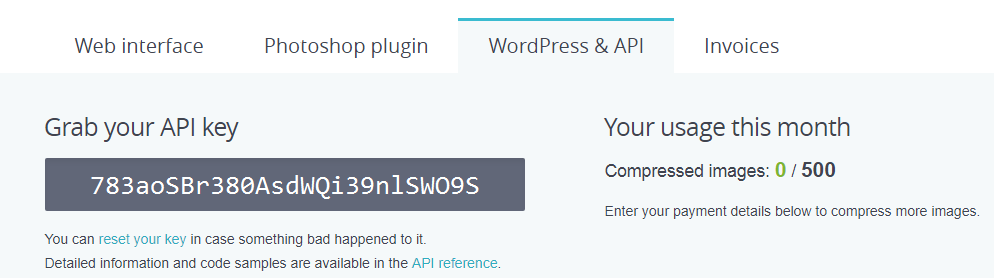
First of all, you need to have a developer key to connect to TinyPNG and use their services. So, go to Developer's API and enter your name and email.

TinyPNG API registration

Once you've registered, you'll get a mail from TinyPNG with a link and once you click on that, you'll go to your developers page which also has your API key and your usage information. Do keep it mind that for the free account, you can only compress 500 images per month. For someone like me, that's a number I won't really be reaching in a month anytime soon. But if do, you should probably check out their paid plans.

Developers API key page

PS: That's not my real key :D

Get started

Once you've the developer key, you can start compressing images using their service. The full documentation for Python is here.

You start by installing Tinify, which is TinyPNG's library for compression.

pip install --upgrade tinify

Then we can start using tinify in code by importing it and setting the API key from your developer's page.

If you've to send your requests over a proxy, you can set that as well.

tinify.proxy = "http://user:pass@192.168.0.1:8080"

Then, you can start compressing your image files. You can upload either PNG or JPEG files and tinify will compress it for you.

For the purpose of this article, I'm going to use the following delorean.jpeg image.

Delorean uncompressed

And I'll compress this to delorean-compressed.jpeg. For that we'll use the following code:

source = "delorean.jpeg"
destination = "delorean-compressed.jpeg"

original = tinify.from_file(source)
original.to_file(destination)

And that gives me this file:

Delorean compressed

If they both look the same, then that is the magic of TinyPNG's compression algorithm. It looks pretty much identical but it did compress it. To verify that, let's print the file sizes.

import os.path as path

original_size = path.getsize(source)
compressed_size = path.getsize(destination)
print(original_size/1024, compressed_size/1024)

And this prints,

29.0029296875 25.3466796875 1.144249662878058

The file was original 29 KB and now after compression it is 25.3 KB which is a fairly good compression for such a small file. If the original file was bigger, you will be able to see an even tighter compression.

And since this is the free version, there's a limit on the number of requests we can make. We can keep track of that with a built-in variable compression_count. You can print that after every requests to make sure you don't go over that.

compressions_this_month = tinify.compression_count
print(compressions_this_month)

You can also compress images from their URL's and store it locally. You will just do:

original = tinify.from_url("https://raw.githubusercontent.com/durgaswaroop/delorean/master/delorean.jpeg")

And then you can store the compressed file locally just like before.

Apart from just compressing the images, you can also resize them with TinyPNG's API. We'll cover that in the tomorrow's article here.

So, That is all for this article.


For more programming articles, checkout Freblogg, Freblogg/Python

Some articles on automation:

Web Scraping For Beginners with Python

My semi automated workflow for blogging

Publish articles to Blogger automatically

Publish articles to Medium automatically


This is the 13th article as part of my twitter challenge #30DaysOfBlogging. Seventeen more articles on various topics, including but not limited to, Java, Git, Vim, Software Development, Python, to come.

If you are interested in this, make sure to follow me on Twitter @durgaswaroop. While you're at it, Go ahead and subscribe here on medium and my other blog as well.


If you are interested in contributing to any open source projects and haven't found the right project or if you were unsure on how to begin, I would like to suggest my own project, Delorean which is a Distributed Version control system, built from scratch in scala. You can contribute not only in the form of code, but also with usage documentation and also by identifying any bugs in its functionality.


Thanks for reading. See you again in the next article.

January 02, 2018

Datasets In Apache Spark | Part 2

In the two last tutorials we have covered what Apache Spark is and also got ourselves familiar with Datasets in Apache Spark, which is the primary data abstraction in Spark. In this tutorial we will see how to read a data file as a parametrized Bean object Dataset using Encoders.

Spark Image Logo 

This tutorial is going to be short, but this is very important as you would find yourself doing this frequently. In the last article you've seen how to read a CSV or JSON file as a Dataset. You might have noticed that we were using Dataset<Row> for everything. If you're not familiar with Generics in Java, Dataset<Row> can be thought of as a Dataset consisting of Row objects. The Row object is a spark sql class and is the default when creating a Dataset.

Although the Row class has some useful methods, as a generic object suitable for all types, it is not suitable for everything. Since Datasets usually store data that usually corresponds to a Bean class, it is better to create a Dataset of that bean class instead of Row. With this, you'll have access to all your usual getters and setters of the bean class. That's what We'll do in this article. We'll create a Dataset of POJO's instead of Row objects.

I'm using the same fake-people.csv file that I used in the last article that looks like this:

id,first_name,last_name,email,gender,ip_address
1,Netti,McKirdy,nmckirdy0@slideshare.net,Female,148.3.248.193
2,Nickey,Curreen,ncurreen1@tripadvisor.com,Male,206.9.48.216
3,Allayne,Chatainier,achatainier2@trellian.com,Male,191.118.4.217
...

To represent this data, I've created a POJO called FakePeople.java, which looks like this:

import lombok.Data;
public @Data class FakePeople {
    final int id;
    final private String firstName;
    final private String lastName;
    final private String email;
    final private String gender;
    final private String ipAddress;
}

I'm using Project Lombok here, to generate the required Getters, Setters and other POJO methods. (If you don't know about Lombok, you should definitely check that out. It is quite handy).

We have our POJO now, Let's get a parametrized Dataset. To achieve this we first need to create an Encoder. We do that for the FakePeople class as following:

Encoder<FakePeople> fakePeopleEncoder = Encoders.bean(FakePeople.class);

This will register our encoder which will help us parse our CSV data.

Of course we need our spark session variable as well.

// Initialize Sparksession
SparkSession spark = SparkSession.builder().appName("Freblogg-Spark").master("local").getOrCreate();

Now we can go ahead and read the CSV file, very much like the way we did before with just one addition.

// Without Encoder
Dataset<Row> people = spark.read().option("header", "true").csv("fake-people.csv");

// With Encoder
Dataset<FakePeople> people = spark.read().option("header", "true").csv("fake-people.csv").as(fakePeopleEncoder);

And the output of people.show(5) is the same as what you'd expect.

+---+----------+----------+--------------------+------+--------------+
| id|first_name| last_name|               email|gender|    ip_address|
+---+----------+----------+--------------------+------+--------------+
|  1|     Netti|   McKirdy|nmckirdy0@slidesh...|Female| 148.3.248.193|
|  2|    Nickey|   Curreen|ncurreen1@tripadv...|  Male|  206.9.48.216|
|  3|   Allayne|Chatainier|achatainier2@trel...|  Male| 191.118.4.217|
|  4|     Tades|    Emmett|temmett3@barnesan...|  Male|153.113.87.195|
|  5|     Shawn|    McGenn|smcgenn4@shop-pro.jp|  Male|  247.45.80.68|
+---+----------+----------+--------------------+------+--------------+

As you can see the only difference in creating the Dataset is .as(fakePeopleEncoder) and that gets us Dataset<FakePeople> instead of Dataset<Row>. And with that, we now have access to all the getters, setters of FakePeople class which we wouldn't otherwise have with a Row object. We'll explore more about how this is useful in a future tutorial.

For more information on Datasets: Spark SQL, DataFrames and Datasets Guide

That is all for this article.


For more programming articles, checkout Freblogg, Freblogg/Java, Freblogg/Spark

Apache Spark articles:

Word count with Apache Spark and Java

Datasets in Apache Spark | Part 1

Datasets in Apache Spark | Part 2


This is the 11th article as part of my twitter challenge #31DaysOfBlogging. Nineteen more articles on various topics, including but not limited to, Java, Git, Vim, Software Development, Python, to come.

If you are interested in this, make sure to follow me on Twitter @durgaswaroop. While you're at it, Go ahead and subscribe here on medium and my other blog as well.


If you are interested in contributing to any open source projects and haven't found the right project or if you were unsure on how to begin, I would like to suggest my own project, Delorean which is a Distributed Version control system, built from scratch in scala. You can contribute not only in the form of code, but also with usage documentation and also by identifying any bugs in its functionality.


Thanks for reading. See you again in the next article.

December 31, 2017

My Almost Fully Automated Blogging Workflow

12:37 Posted by Freblogg , , , , , , , 2 comments

In the article My semi automated workflow for blogging, I have outlined what my blogging process is like and how I've started to automate it. Ofcourse, at the time of that article, the process was still in early stages and I hadn't automated everything I do. And, that's where this article comes in. This is the second attempt at automating my entire Blogging workflow.

Medium blogger python logo

Just to give you some context, here are the things that I do when I'm blogging.

  1. Open a markdown file in Vim with the title of the article as the name along with some template text
  2. Open a browser with the html of the newly created markdown file
  3. Convert markdown to html with pandoc several times during the writing process
  4. Once the article is done and html is produced, edit the html to make some changes specific based on whether I'm publishing on Medium or if I'm publishing on Blogger
  5. Read the tags/labels and other attributes from the file and Publish the code as draft on Medium or Blogger.
  6. Once it looks good, Schedule or Publish it (This is a manual process. There's no denying it.)
  7. Finally tweet about the post with the link to the article

I have the individual pieces of this process ready. I have already written about them in the following articles.

Semi Automated Blogging Workflow

Publish Articles To Blogger In One Second

Publish Articles To Medium In One Second

Tweeting With Python & Tweepy

Now, since the individual pieces are ready, it might seem that everything is done. But, as it turns out (unsurprisingly), the integration is of-course a big deal and took a lot more effort than I was expecting. And I am documenting that in this article along with the complete flow.

It starts with the script blog-it which opens vim for me, opens chrome and also sets up a process for converting markdown to html, continuously.

That script calls blog.py which is what opens the vim along with the default text template. I would like to put the complete gist here, but it is just too long and so instead I'm showing the meat of the script.

article_title = title.replace("_", " ").title()

# Create the markdown file and add the title
f = open(md_file, "w+")
f.write(generate_comments_header(article_title))
f.write(article_title)  # Replace underscores and title case it
f.write("\n")
f.write("-" * len(title))
f.write("\n")
f.write(generate_footer_text())
f.close()

# Now, create the html file
html_file = title + ".html"
open(html_file, "w").close()

# Start vim with the markdown file open on line #10
subprocess.run(['C:/Program Files (x86)/Vim/vim80/gvim.exe', '+10', md_file])

Then comes m2h which continuously converts markdown to html.

This ends one flow. Next comes, publishing. I have broken this down because publishing is a manual process for me unless I can complete the entire article in one sitting, which is never going to be possible. So, Once I'm doing with writing it, I'll start the publishing.

I'll run publish.py which depending on the comments in the html publishes it to either Blogger or Medium. Again, I'm only showing a part of it. The full gist is available here.

with open(html_file) as file:
    html_file_contents = file.read()

re_comments = re.compile('\s*<!--(.*)-->', re.DOTALL)
comments_text = re_comments.search(html_file_contents).group(1).strip()
comments_parser = CommentParser.parse_comments(comments_text)

if comments_parser.destination.lower() == 'blogger':
    blogger_publish.publish(html_file, comments_parser.title, comments_parser.labels, comments_parser.post_id)
elif comments_parser.destination.lower() == 'medium':
    medium_publish.publish(html_file, comments_parser.title, comments_parser.labels)
else:
    print(
        'Unknown destination: ' + comments_parser.destination + '. Supported destinations are Blogger and Medium.')

Then comes the individual publishing scripts that publish to blogger and medium.

For blogger-publish.py (Gist here), I do any required modifications with blogger_modifications.py (Gist here) which converts some tags as expected my blogger page.

Then for medium-publish.py (Gist here), I take the parameters and publish to blogger as html. No, modifications needed to be done here.

access_token_file = '~/.medium-access-token'
expanded_path = os.path.expanduser(access_token_file)
with open(expanded_path) as file:
  access_token = file.read().strip()

headers = get_headers(access_token)
user_url = get_user_url(headers)

# Publish new post
posts_url = user_url + 'posts/'
payload = generate_payload(title, labels, html_file)
response = requests.request('POST', posts_url, data=payload, headers=headers)

Actually this publishing does send it to the site as a draft instead of actually publishing it. This is a step that I don't know how to automate as I have to manually take a look at how the article looks in preview. May be I should try doing this with selenium or something like that.

Once, I've verified that the post looks good, I will publish it and take the URL of the published article and call the tweeter.py (Gist here) which then opens a Vim file with some default text for title, and URL already filled in along with some hashtags. I'll complete the tweet and once, I close it, It gets published on Twitter.

And that completes the process. Obviously there are still a couple of manual steps. Although I can't eliminate all of them, I might be able to minimize them as well. But, so far it looks pretty good especially with just the little effort I've put into this in just one week. Of course, I'll keep on tuning it as needed to make it even better and may be I'll publish one final article for that.

That is all for this article.


For more programming articles, checkout Freblogg, Freblogg/Python

Some articles on automation:

Web Scraping For Beginners with Python My semi automated workflow for blogging Publish articles to Blogger automatically Publish articles to Medium automatically


This is the 9th article as part of my twitter challenge #30DaysOfBlogging. Twenty one more articles on various topics, including but not limited to, Java, Git, Vim, Software Development, Python, to come.

If you are interested in this, make sure to follow me on Twitter @durgaswaroop. While you're at it, Go ahead and subscribe here on medium and my other blog as well.


If you are interested in contributing to any open source projects and haven't found the right project or if you were unsure on how to begin, I would like to suggest my own project, Delorean which is a Distributed Version control system, built from scratch in scala. You can contribute not only in the form of code, but also with usage documentation and also by identifying any bugs in its functionality.


Thanks for reading. See you again in the next article.

December 29, 2017

Publish Articles To Your Medium Blog In One Second With Integration Tokens

14:27 Posted by Freblogg , , , , 2 comments

In my article My semi automated workflow for blogging, I have talked about my blogging workflow. There were two main things (actually one thing) in that flow that were not automated. i.e., automatically Uploading to Blogger and automatically Uploading to Medium. I have talked about the first one here. This article is about uploading posts to Medium automatically.

Medium Logo 

Developer documentation for Medium is a breath of fresh air after the mess that is Google API’s. Of course, Google API’s are complex because they have so many different services, but they could’ve done a better job at organizing all that stuff. Anyway, Let’s see how you can use Medium API’s.

Setting Up

We don’t really need any specific dependencies for what we’re doing in this article. You can do everything with urllib which is already part of the python standard library. I’ll be using requests as well to make it a bit more simpler but you can achieve the same without it.

Getting the access token

To authenticate yourself with Medium, you need to get an access token that you’ll pass along to every request. There are two ways to get that token.

  1. Browser-based authentication
  2. Self-issues access tokens

Which one you should go with, depends on what kind of application you’re trying to build. As you can probably guess based on the title, we’ll be covering the second method in this article. The first method needs an authentication server setup which can accept callback from Medium. But, since at this moment, I don’t have that setup, I’m going with the second option.

The Self-issued access tokens method is quite easy to work with as you directly take the access token without having to have the user authenticate via the browser.

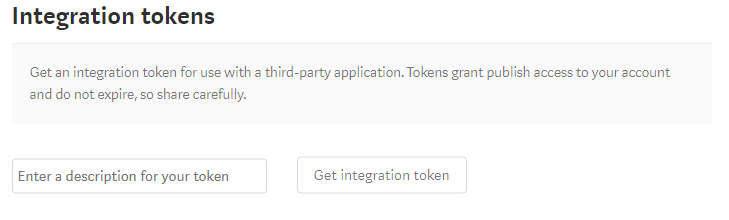
To get the access token, Go to Profile Settings and scroll down till you see Integration tokens section.

Medium Integration tokens 

There enter some description for what you’re going to use this token and click on Get integration token. Copy that generated token which looks something like 181d415f34379af07b2c11d144dfbe35d and save it some where to be used in your program.

Using Access token to access Medium

Once you have the access token, you’ll use that token as your password and send it along with every request to get the required data.

Let’s get started then. As, I’ve said we’ll be using requests library for url connections. We’ll also be using the json libary for parsing the responses. So, Let’s import them.

import requests
import json

Then use access_token you’ve got and put it in a headers dictionary.

access_token = '181d415f34379af07b2c11d144dfbe35d'
headers = {
    'Authorization': "Bearer " + access_token,
    'User-Agent': 'Mozilla/5.0 (Windows NT 6.3; Win64; x64) AppleWebKit/537.36 (KHTML, like Gecko) Chrome/63.0.3239.84 Safari/537.36'
}

The User-Agent in the above dictionary is required as Medium won’t accept your request otherwise. You don’t have to have the same value as I did.

Validating the access token

First thing to check is if the access_token is valid. You can do that by making a GET request to https://api.medium.com/v1/me and checking the response.

me_url = base_url + 'me'
me_req = ureq.Request(me_url, headers=headers)
me_response = ureq.urlopen(me_req).read()
json_me_response = json.loads(me_response)
print(json_me_response)

And, when I print the json_me_response, which is a json object, I get the following:

{
"data": {
  "id":"5303d74c64f66366f00cb9b2a94f3251bf5adskak7623as",
  "username":"durgaswaroop", 
  "name":"Durga swaroop Perla", 
  "url":"https://medium.com/@durgaswaroop",
  "imageUrl":"https://cdn-images-1.medium.com/fit/c/400/400/0*qVDXEHT9DDYUOcrj."
  }
}

If we got that response like above, then we know that the access token we have is valid.

From there, I extract, the user_id from the JSON string, with

user_id = json_me_response['data']['id']

Get User’s Publications

From the above request, we’ve validated that the access token is correct and we also have got the user_id. Using that we can get access to the publications of a user. For that, we’ve to make a GET to https://api.medium.com/v1/users/{{userId}}/publications and you’ll see the list of the publications by that user.

user_url = base_url + 'users/' + user_id
publications_url = user_url + 'publications/'
publications_req = ureq.Request(publications_url, headers=headers)
publications_response = ureq.urlopen(publications_req).read()
print(publications_response)  

I don’t have any publications on my medium account, and so I got an empty array as response. But, if you have some publications, the response will be something like this.

{
  "data": [
    {
      "id": "b969ac62a46b",
      "name": "About Medium",
      "description": "What is this thing and how does it work?",
      "url": "https://medium.com/about",
      "imageUrl": "https://cdn-images-1.medium.com/fit/c/200/200/0*ae1jbP_od0W6EulE.jpeg"
    },
    {
      "id": "b45573563f5a",
      "name": "Developers",
      "description": "Medium’s Developer resources",
      "url": "https://medium.com/developers",
      "imageUrl": "https://cdn-images-1.medium.com/fit/c/200/200/1*ccokMT4VXmDDO1EoQQHkzg@2x.png"
    }
  ]
}

Now, one weird thing about Medium’s API is that they don’t have a GET for posts. From the API’s we can get a list of all the publications but you can’t get a user’s posts. You can only publish a new post. Although, it is odd for that to be missing, It is not something I’m looking for anyway, as I am only interested in publishing an article. But if you need that, you probably should check to see if there are any hacky ways of achieving the same (at your own volition).

Create a New Post

To create a new post, we have to make a POST request to https://api.medium.com/v1/users/{{authorId}}/posts. The authorId here would be the same as the userId of the user whose access-token you have.

I’m using requests library for this as making a POST request becomes easy with it. Of course, first you need to create a payload to be uploaded. The payload should look something like the following, as described here

{
  "title": "Liverpool FC",
  "contentFormat": "html",
  "content": "<h1>Liverpool FC</h1><p>You’ll never walk alone.</p>",
  "tags": ["football", "sport", "Liverpool"],
  "publishStatus": "public"
}

So, for this, I did the following:

posts_url = user_url + 'posts/'

payload = {
    'title': 'Medium Test Post',
    'contentFormat': 'markdown',
    'tags': ['medium', 'test', 'python'],
    'publishStatus': 'draft',
    'content': open('7.Test_post.md').read()
}

response = requests.request('POST', posts_url, data=payload, headers=headers)
print(response.text)

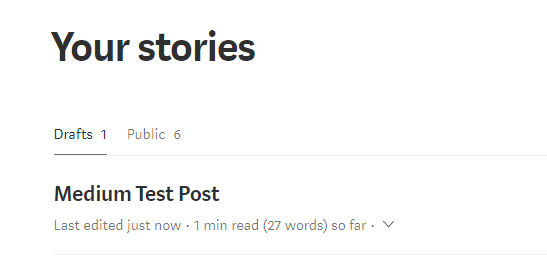
As you see, for contentFormat, I’ve set markdown and for content I read it straight from the file. I didn’t want to publish this as it is just a dummy post and so I’ve set the publishStatus to draft. And sure enough, it works as expected and I can see this draft added on my account.

Draft post 

Do note that the title in the payload object won’t actually be the title of the article. If you want to have a title, you add it in the content itself as a <h*> tag.

The full code is available as a gist.

That is all for this article.


For more programming and Python articles, checkout Freblogg and Freblogg/Python

Some articles on automation:

Web Scraping For Beginners with Python

My semi automated workflow for blogging


This is the seventh article as part of my twitter challenge #30DaysOfBlogging. Twenty-three more articles on various topics including but not limited to Java, Git, Vim, Software Development, Python, to come.

If you are interested in this, make sure to follow me on Twitter @durgaswaroop. While you’re at it, Go ahead and subscribe to this blog and my blog on Medium as well.


If you are interested in contributing to any open source projects and haven’t found the right project or if you were unsure on how to begin, I would like to suggest my own project, Delorean which is a Distributed Version control system, built from scratch in scala. You can contribute not only in the form of code, but also with usage documentation and also by identifying any bugs in the functionality.


Thanks for reading. See you again in the next article.

December 27, 2017

Datasets in Apache Spark | Part 1

In my previous post I have talked about Apache Spark. We have also built an application for counting the number of words in a file, which is the hello world equivalent of the big data world.

Apache spark Java Logo’s

It has been over 18 months since that article and spark has changed quite a lot in this time. A new major release of spark, which is spark-2.0 came out and now the latest version is 2.2.1. And with a new version comes new API’s and improvements. In-fact the first thing you’ll probably notice is that, you don’t need to create SparkContext or JavaSparkContext objects anymore. The various context and configurations have been put together into a new class SparkSession. You can still access the SparkContext or the SqlContext from the SparkSession object itself. So, you’ll be starting your programs with this now:

SparkSession spark = SparkSession.builder().appName("Freblogg-Spark").master("local").getOrCreate();

And you can use this spark variable the way you’d use other context variables.

Another change in Spark 2.0 is that, there is a heavy emphasis on the usage of Dataset API’s, and for a good reason. Datasets are more performant and memory efficient than RDD’s. RDD (Resilient Distributed Datasets) have been pushed to second place now. You can still use RDD’s if you want but Datasets are the preferred API. In fact, datasets have some nice convenience methods that we can use them for even unstructured data like text as well. Let’s generate some cool lipsum from Malevole. It looks something like this:

Ulysses, Ulysses - Soaring through all the galaxies. In search of Earth, flying in to the night. Ulysses, Ulysses - Fighting evil 
and tyranny, with all his power, and with all of his might. Ulysses - no-one else can do the things you do. Ulysses - like a bolt of
thunder from the blue. Ulysses - always fighting all the evil forces bringing peace and justice to all....

Now, you might try to use an RDD to read this, but let’s see what we can do with Datasets.

Dataset<String> lipsumDs = spark.read().textFile("fake-text.txt");
lipsumDs.show(5);

Here we are reading the text file using the spark object we created earlier and that gives us a Dataset<String> lipsumDs. The show() method on the dataset object prints the dataset. And we get the following output:

+--------------------+
|               value|
+--------------------+
|Ulysses, Ulysses ...|
|Ulysses, Ulysses ...|
| no-one else can ...|
|  always fighting...|
|                    |
+--------------------+

What we see here are the lines of the text file. Each line in the file is now a row in the Dataset. There are now a rich set of functions available to you in Datasets which weren’t in RDD’s. You can do filters on the rows for certain words, do a count on the table, perform groupBy operations, etc all like you would on a Database table. For a full list of all the available operations on Dataset, read this: Dataset: Spark Documentation.

I hope that’s enough talk about unstructured data analysis. Let’s get to the main focus of this article, which is using Datasets for structured data. More specifically, csv and json. For this tutorial, I am using the data created from Mockaroo, an online data generator. I’ve created 1000 csv records that look like this:

id,first_name,last_name,email,gender,ip_address
1,Netti,McKirdy,nmckirdy0@slideshare.net,Female,148.3.248.193
2,Nickey,Curreen,ncurreen1@tripadvisor.com,Male,206.9.48.216
3,Allayne,Chatainier,achatainier2@trellian.com,Male,191.118.4.217
4,Tades,Emmett,temmett3@barnesandnoble.com,Male,153.113.87.195
5,Shawn,McGenn,smcgenn4@shop-pro.jp,Male,247.45.80.68
6,Giuseppe,Scobbie,gscobbie5@twitter.com,Male,123.114.131.200
...

We’ll use this data, which I’ve put in a file named fake-people.csv, to work with Datasets. Let’s create a Dataset out of this csv data.

Dataset<Row> peopleDs = spark.read().option("header", "true").csv("fake-people.csv");
peopleDs.show(5);

Since we’ve column headers in our data, we add the .option("header", "true") and the output is a nicely formatted table of the data with all the columns like this:


+---+----------+----------+--------------------+------+--------------+
| id|first_name| last_name|               email|gender|    ip_address|
+---+----------+----------+--------------------+------+--------------+
|  1|     Netti|   McKirdy|nmckirdy0@slidesh...|Female| 148.3.248.193|
|  2|    Nickey|   Curreen|ncurreen1@tripadv...|  Male|  206.9.48.216|
|  3|   Allayne|Chatainier|achatainier2@trel...|  Male| 191.118.4.217|
|  4|     Tades|    Emmett|temmett3@barnesan...|  Male|153.113.87.195|
|  5|     Shawn|    McGenn|smcgenn4@shop-pro.jp|  Male|  247.45.80.68|
+---+----------+----------+--------------------+------+--------------+

You can read in json data similarly as well. So, I generated some json this time from mockaroo.

{"id":1,"first_name":"Zenia","last_name":"Joberne","email":"zjoberne0@foxnews.com","gender":"Female","ip_address":"214.207.159.43"}
{"id":2,"first_name":"Renard","last_name":"Kezor","email":"rkezor1@elpais.com","gender":"Male","ip_address":"199.3.18.104"}
{"id":3,"first_name":"Briant","last_name":"Patel","email":"bpatel2@odnoklassniki.ru","gender":"Male","ip_address":"111.184.217.23"}
{"id":4,"first_name":"Robinett","last_name":"Heasley","email":"rheasley3@tiny.cc","gender":"Female","ip_address":"21.40.190.226"}
{"id":5,"first_name":"Rosalinda","last_name":"Glandfield","email":"rglandfield4@indiegogo.com","gender":"Female","ip_address":"26.16.4.132"}
{"id":6,"first_name":"Haslett","last_name":"Culligan","email":"hculligan5@meetup.com","gender":"Male","ip_address":"201.191.72.10"}
....

Note: Spark can read json only of this format where we have one object per row. Otherwise you will see _corrupt_record when you print your dataset. That’s your cue to make sure the json is formatted as per spark’s need.

And you read json very similar to the way you read csv. Since in json we don’t have headers, we don’t need the header option.

Dataset<Row> peopleJsonDs = spark.read().json("fake-people.json");
peopleJsonDs.show(5);

And the output is,

+--------------------+----------+------+---+--------------+---------+
|               email|first_name|gender| id|    ip_address|last_name|
+--------------------+----------+------+---+--------------+---------+
|psurgison0@istock...|   Prissie|Female|  1| 48.151.89.171| Surgison|
| rsewell1@jalbum.net|    Robena|Female|  2| 184.16.37.210|   Sewell|
|aluxon2@list-mana...| Annamarie|Female|  3| 254.69.187.23|    Luxon|
|sodoherty3@twitpi...|   Shannah|Female|  4| 0.245.101.197|O'Doherty|
| alodford4@jigsy.com|     Alice|Female|  5|70.217.170.182|  Lodford|
+--------------------+----------+------+---+--------------+---------+

You can see the order of columns is jumbled. This is because JSON data doesn’t usually keep any specified order and so, when you read JSON data into a dataset, the order might not be same as what you’ve given. Of course if you want to display the columns in a particular order, you can always do a select operation.

peopleJsonDs.select("id", "first_name", "last_name", "email", "gender", "ip_address").show(5);

And that would print it in the right order. This is exactly like the SELECT query in SQL, if you’re familiar with it.

Now, that we have seen how to create Datasets, let’s see some of the operations we can perform on them.

Operations on Datasets

Datasets are built on top of Dataframes. So, if you’re already familiar with Dataframes in the spark 1.x releases you already know a ton about Datasets. Some of the operations you can perform on Dataset are as follows:

Column selection

Select one or more columns from the dataset.
peopleDs.select("email").show(5); // Selecting one column
peopleDs.select(col("email"), col("gender")).show(5); // Selecting multiple columns

Note: col is a static import of org.apache.spark.sql.functions.col;

Filtering on columns

Filter a subset of rows in the dataset based on conditions.
// Filter rows with id > 5 and \<= 10
peopleDs.filter(col("id").$less$eq(10).and(col("id").$greater(5))).show();

Dropping columns

Remove one or more columns from the dataset
peopleDs.drop("last_name", "ip_address").show(5);

Sorting on columns

peopleDs.sort(desc("first_name")).show(5);

And that sorts the dataset in the reverse order of the column first_name.

Output:

+---+----------+---------+--------------------+------+-------------+
| id|first_name|last_name|               email|gender|   ip_address|
+---+----------+---------+--------------------+------+-------------+
|685|  Zedekiah|  Brockie|zbrockiej0@mozill...|  Male|105.119.18.98|
|308|     Zarla| Bryceson|zbryceson8j@redif...|Female|55.118.168.15|
|636|  Zacherie|   Kermon|zkermonhn@prnewsw...|  Male| 120.36.10.87|

Those are some of the functions that you can use with Datasets. There are still several Database table type operations on Datasets, like group By, aggregations, joins, etc. We’ll look at them in the next article on Spark as I think this article already has a lot of information already and I don’t want to overload you with information.

So, that is all for this article. If you’re someone that has never tried Datasets or Dataframes, I hope this article gave a good introduction on the topic to keep you interested in learning more.

The full code is available as gist.


For more Java, Apache Spark, Big data and other programming articles, checkout Freblogg, Freblogg/Java, Freblogg/Spark


This is the fifth article as part of my twitter challenge #30DaysOfBlogging. Twenty-five more articles on various topics including but not limited to Java, Git, Vim, Software Development, Python, to come.

If you are interested in this, make sure to follow me on Twitter @durgaswaroop. While you’re at it, Go ahead and subscribe to this blog and my blog on Medium as well.


If you are interested in contributing to any open source projects and haven’t found the right project or if you were unsure on how to begin, I would like to suggest my own project, Delorean which is a Distributed Version control system, built from scratch in scala. You can contribute not only in the form of code, but also with usage documentation and also by identifying any bugs in the functionality.


Thanks for reading. See you again in the next article.

December 25, 2017

Tweeting with Python and Tweepy

13:30 Posted by Freblogg , , , , , , , No comments

Programmers love to automate things and I'm no exception. I always like automate my common tasks. Whether it is checking for stock prices or checking to see when the next episode of my favorite show is coming, I've automated scripts for that. Today I am going to add one more thing in that list i.e., automated tweeting. I tweet quite frequently and I would love to have a way of automating this as well. And that's exactly what we're going to do today. We are tweeting using python.

twitter and python

We'll use a python library called tweepy for this. Tweepy is a simple, easy to use library for accessing Twitter API.

Accessing twitter API's programmatically is not only just an accessibility feature but can be of enormous value too. Mining the twitter verse data is one of the key steps in sentimental analysis. Twitter chat bots have also become quite popular now a days with hundreds and thousands of bot accounts. This article, although, only barely scratches the surface, hopefully will helping in building yourself towards that.

Setting Up

First thing's first, install tweepy by running pip install tweepy. The latest version at the time of the writing this article is 3.5.0.

Then we need to have our Twitter API credentials. Go to Twitter Apps. If you don't have any apps registered already, go ahead and click the Create New App button.

To register your app you have to provide the following three things

  1. Name of your application
  2. Description
  3. Your website url

There is one more option which is callback URL. You can ignore that for now. Then after reading the Twitter developer agreement (wink wink), click on Create your Twitter application button to create a new app.

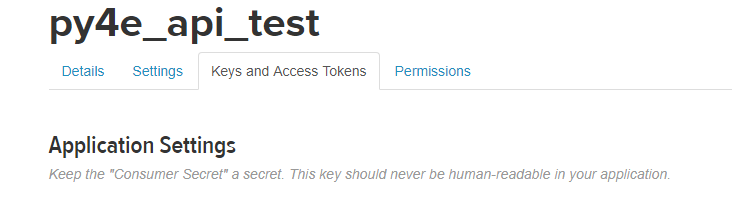
Once the app is created you should see that in your twitter apps page. Click on it and GOTO the Keys and Access Tokens tab.

twitter apps tabs

There you will see four pieces of information. First you have your app API keys which are consumer key and consumer secret. Then you have your access token and access token secret.

We'll need all of them to access twitter API's. So, have them ready. I have copied all of them and exported them as system variables. You could do the same or if you'd like, you can read them from a file as well.

Let's get started

First you have to import tweepy and os(only if you are accessing system variables).

import tweepy
import os

Then I'll populate the access variables by reading them environment variables.

consumer_key = os.environ["t_consumer_key"]
consumer_secret = os.environ["t_consumer_secret"]
access_token = os.environ["t_access_token"]
access_token_secret = os.environ["t_access_token_secret"]

With the keys ready, we setup the authorization.

authorization = tweepy.OAuthHandler(consumer_key, consumer_secret)
authorization.set_access_token(access_token, access_token_secret)

After authorization we create an API object twitter

twitter = tweepy.API(authorization)

And now you can tweet from python using this twitter object like this.

twitter.update_status("Tweet using #tweepy")

That is all you have to do. Just five lines of code and you can already tweet. You should try it out and check your twitter account. I just ran this command and this is the tweet.

Not just this, you can also tweet media. Let's tweet again, this time with a picture attached.

image = os.environ['USERPROFILE'] + "\\Pictures\\cubes.jpg"
twitter.update_with_media(image, "Tweet with media using #tweepy")

And this is the media tweet.

When you run the previous commands, you'll see that there is a lot of output that is printed on the terminal. This is a status object with a lot of useful data like the number of followers you got, your profile picture URL, your location etc., pretty much everything you get from your twitter page. We can make use of this information, If we are building something more comprehensive.

Apart from sending regular tweets, you can also reply to existing tweets. To reply to a tweet you'd first need its tweet_id which you can get from the tweet's URL.

For example the URL for previous tweet is https://twitter.com/durgaswaroop/status/945049796238118912 and the tweet_id is 945049796238118912.

Using that id, we can send another tweet as reply.

id_of_tweet_to_reply = "945049796238118912"
twitter.update_status("Reply to a tweet using #tweepy", in_reply_to_status_id=id_of_tweet_to_reply)

The only change in the syntax is in_reply_to_status_id=id_of_tweet_to_reply that is passed as the second argument. And with that our new tweet will be added as reply to the original tweet.

The new reply tweet is this:

That's how easy it is to access Twitter API with tweepy. We now know how to tweet and how to reply to a tweet. Building up from this knowledge, In a later tutorial, I can show you how to create your own twitter chat-bot and also twitter streaming analysis.

The full code of things covered in this article is available as gist at


For more programming and Python articles, checkout Freblogg and Freblogg/Python

Web Scraping For Beginner with Python


This is the third article as part of my twitter challenge #30DaysOfBlogging. Twenty-seven more articles on various topics including but not limited to Java, Git, Vim, Software Development, Python, to come.

If you are interested in this, make sure to follow me on Twitter @durgaswaroop. While you're at it, Go ahead and subscribe to this blog and my blog on Medium as well.


If you are interested in contributing to any open source projects and haven't found the right project or if you were unsure on how to begin, I would like to suggest my own project, Delorean which is a Distributed Version control system, built from scratch in scala. You can contribute not only in the form of code, but also with usage documentation and also by identifying any bugs in the functionality.


Thanks for reading. See you again in the next article.

December 23, 2017

Sessions in Vim

14:30 Posted by Freblogg , , , No comments

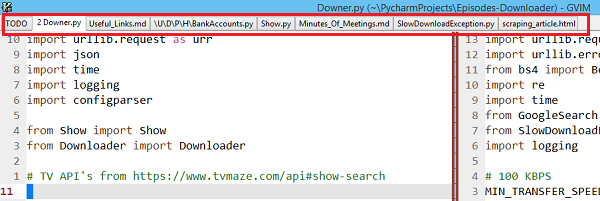
I love to have a lot of tabs open at the same time in Vim. Being the deputy Scrum master (Yeah, it is a thing) of our dev-team, I have to keep track of a lot of things going on in the team. I maintain a repository of all the links to product documentation, stories, tasks etc. I also need to keep track of the discussions that happened in various team meetings. On top of this, as a backend engineer I have my own stories and tasks to manage as well. All of this means that, I have a ton of tabs and splits open at any given time in Vim. Something like the following:

Vim multiple tabs open

Now, the problem comes when I have to shutdown and start my computer. All the tabs I have kept open for several days will be gone and I have to open them up all again and put them in the order I want. Oh, the pain!. There has to a better way!

There has to be a better way

Luckily for us Vim always has a better way to do something. There is an inbuilt feature just for this.

It is called Vim-sessions and with that you can get back all your tabs with just one command. How nice!

How to create a new session?

To create a vim session, run the command :mksession episodes.session. Here episodes is the name of the session I want to create.

In short, :mks <session-name>.session. And that’s it. Your session is now saved. It saves information about what tabs are currently open, what splits are open and even what buffers are open, all into that session file.

Note: The .session suffix is not needed. But it is the preferred way as you can easily identify the session file.

Once this is done, you can go ahead and close your tabs as all of that is stored in the session file.

How to open an existing session?

Now that we have the session saved, the next time you want to open all of those tabs, all you have to do is tell Vim to run that session. You do that by running the command :so <session-file-path>(:so is short for :source).

And boom. All of your windows and tabs are back with just one command. You don’t have to have multiple tmux or screen buffers running anymore. Vim can do all of that with just one command.

That is all you need to know about sessions in vim to make yourself productive. You can always try the vim help with :help session-file and find out more.


For more Vim articles, checkout Freblogg/Vim

Beginner Vim Tutorials - Your First Lesson In Vim

Vim Color scheme used: Eclipse


This is the first article as part of my twitter challenge #30DaysOfBlogging. Twenty-nine more articles on various topics including but not limited to Java, Git, Vim, Software Development, Python, to come.

If you are interested in this, make sure to follow me on Twitter @durgaswaroop. While you’re at it, Go ahead and subscribe to this blog and my blog on Medium as well.


If you are interested in contributing to any open source projects and haven’t found the right project or if you were unsure on how to begin, I would like to suggest my own project, Delorean which is a Distributed Version control system, built from scratch in scala. You can contribute not only in the form of code, but also with usage documentation and also by identifying any bugs in the functionality.


Thanks for reading. See you again in the next article.

September 11, 2017

How to recover from 'git reset --hard" | Git

12:30 Posted by Freblogg , , No comments
Git is an amazingly powerful tool. But, as Uncle Ben said,
With great power, comes great responsibility
And that is true for Git as well. If you are not careful when using it, you could easily burn your a**.
So, If something like that happened to you, Or If you want to make sure that never happens to you, then watch this video.


Subscribe to the channel for more videos like this.

August 26, 2017

August 12, 2017

Matrix Multiplication | C Programming

We have discussed about Matrix arithmetic in my recent youtube tutorial.


In that, I have already shown how Matrix addition and subtraction can be done and asked you to try multiplication themselves. Hopefully you have been able to do that Or atleast tried it out before coming here to see my solution.

For this example, I have taken two matrices as follows.


Matrix1 has 3 rows and 4 columns and Matrix2 has 4 rows and 3 columns. And now, the code to multiply these two matrices.
#include "stdio.h"
main() {

    int matrix1[3][4] = { {1,2,3,4}, {3,4,1,2}, {4,1,2,3} };
    int matrix2[4][3] = { {0,1,2}, {1,2,0}, {2,0,1}, {1,0,2} };
    
    // Values from the matrices. No. of columns in matrix1 = No. of rows in matrix2. Matrix Multiplication possible
    int rows1 = 3, cols1 = 4, rows2 = 4, cols2 = 3;        
    
    // Initialize the resultant matrix with all zeroes
    int mult_matrix[3][3] = {0};
    
    // Loop variables
    int i=0, j=0, k=0;
        
    for(i = 0; i < rows1; i++) {
        for(j = 0; j < cols2; j++) {
            for(k = 0; k < cols1; k++) {
                // Since we are initializing with zero, we can add new values to the previous value to get the final value
                mult_matrix[i][j] += matrix1[i][k] * matrix2[k][j];
            }
        }
    }
    
    //  Print the new matrix
    for(i = 0; i < rows1; i++) {
        for(j = 0; j < cols2; j++) {
            printf("%d ", mult_matrix[i][j]);
        }
        printf("\n");
    }
}

And when you run this program, you get the following output as one would expect:
12 5 13
8 11 11
8 6 16

Press any key to continue . . .
The comments, along with the explanation in the video should be enough for you to understand this code directly.But, do reach out on social media for any queries.

That's all for this article.
As, always, Have a happy reading and Stay Awesome !

If you have liked this article and would like to see more, subscribe to our Facebook and G+ pages.

Facebook page @ Facebook.com/freblogg

Google Plus Page @ Google.com/freblogg